
Google Meet translation: what works and what doesn't
Google Meet has two built-in translation features: translated captions and speech translation. Here's what each does, who can use it, how to turn it on, and where it falls short.

Michał Włosik
· 5 min read
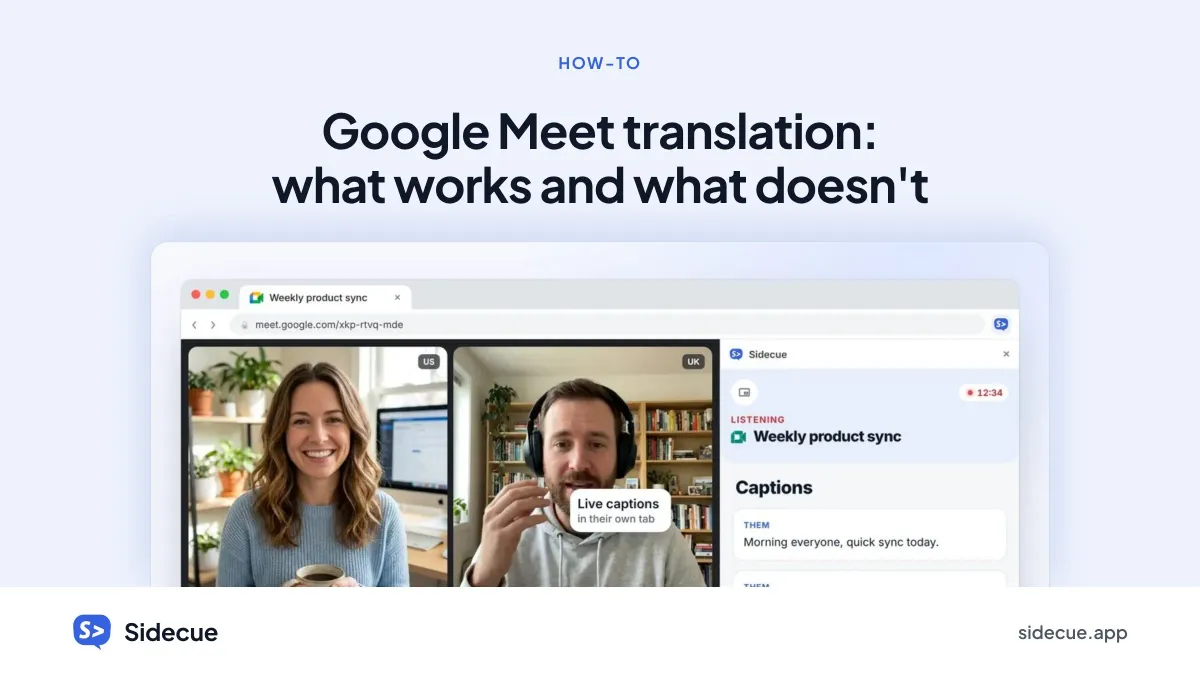
Google Meet now has two built-in ways to follow a meeting in another language: translated captions, which show subtitles in your language, and speech translation, which plays translated audio. Both are useful, but both depend on your Google plan, and neither is designed to help you take part in a language you're still learning.
Here's what each feature does as of October 2026, who can use it, how to turn it on, and where it falls short.
Translated captions
Translated captions turn what people say into subtitles in another language, live. Google's help page lists about 70 languages you can translate to or from, including English, Spanish, French, German, Japanese, Hindi and Arabic. Some languages are in beta and still rolling out.
Who can use it
Translated captions are limited to certain Google Workspace editions, including Business Standard, Business Plus, Enterprise Standard, Enterprise Plus and Google AI Pro for Education. Free personal Google accounts and Business Starter don't get them.
How to turn on translated captions
- Join the meeting at meet.google.com on a computer.
- At the bottom, hover over the captions and translation control and turn on captions.
- Choose Translated captions and pick the language to translate from and to.
You can also do it from More options → Settings → Captions.
Limits
- You only see translated captions for the part of the meeting where you had them on.
- Beta languages can be less accurate.
- Captions translate the words, but idioms are often translated literally, so “let's take this offline” can come out sounding like a network problem.
Speech translation
Speech translation goes a step further: Meet detects the language each person speaks and plays a translated version in your preferred language, in a voice like the speaker's. You can also choose to have your own speech translated for others. In October 2026, Google expanded it to 63 languages with automatic language detection, on web and on the Meet mobile apps.
Who can use it
For a scheduled meeting, the host needs an eligible plan. In a direct call, at least one person does. Eligible plans include Google AI Pro and Ultra, Workspace Business Standard and Plus, Enterprise Standard and Plus, Frontline Plus and Google AI Pro for Education. On most of these, translation is limited to 90 minutes per meeting; Google AI Ultra and some add-ons allow up to 8 hours.
How to turn on speech translation
- In the meeting, hover over the captions and translation control.
- Click Translate speech.
- The first time, choose your preferred language.
- Click Translate me if you want others to hear your speech translated.
Limits
- Translation arrives a few seconds late, and Google notes it can include grammar errors, unclear words and changes in voice style.
- It doesn't work in recordings, live streams, dial-in calls or client-side encrypted meetings.
- People in a meeting room using Meet hardware aren't translated for others.
- Each person has to turn it on, and has to agree before their own voice is translated.
- Workspace admins can switch it off for the whole organisation.
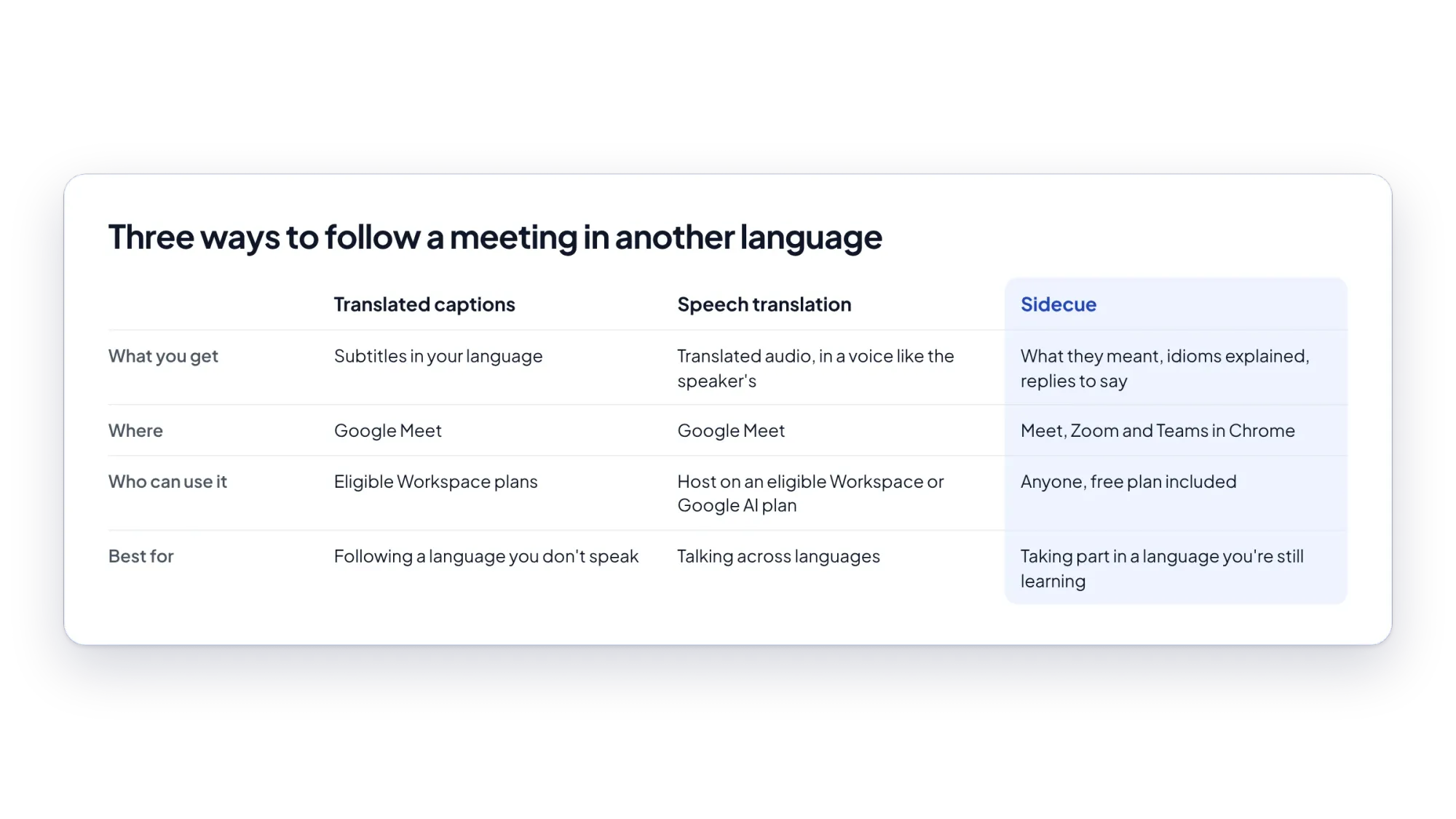
What translation doesn't solve
Translation is great when you don't speak the meeting language at all. But many people work in English every day and understand most of it. For them, the problem isn't every sentence. It's the idiom they didn't catch, the jargon nobody explained, or the question they need to answer right now, in English.
- Idioms lose their meaning. A word-for-word translation of “the ball is in your court” doesn't tell you that someone expects you to act.
- You still have to reply in English. Reading a translation doesn't help you build an answer.
- It only works in Google Meet. Clients and partners often send Zoom or Teams links.
- It depends on the host's plan. If the person who scheduled the call isn't on an eligible plan, you don't get it.
A different approach: explain, don't translate
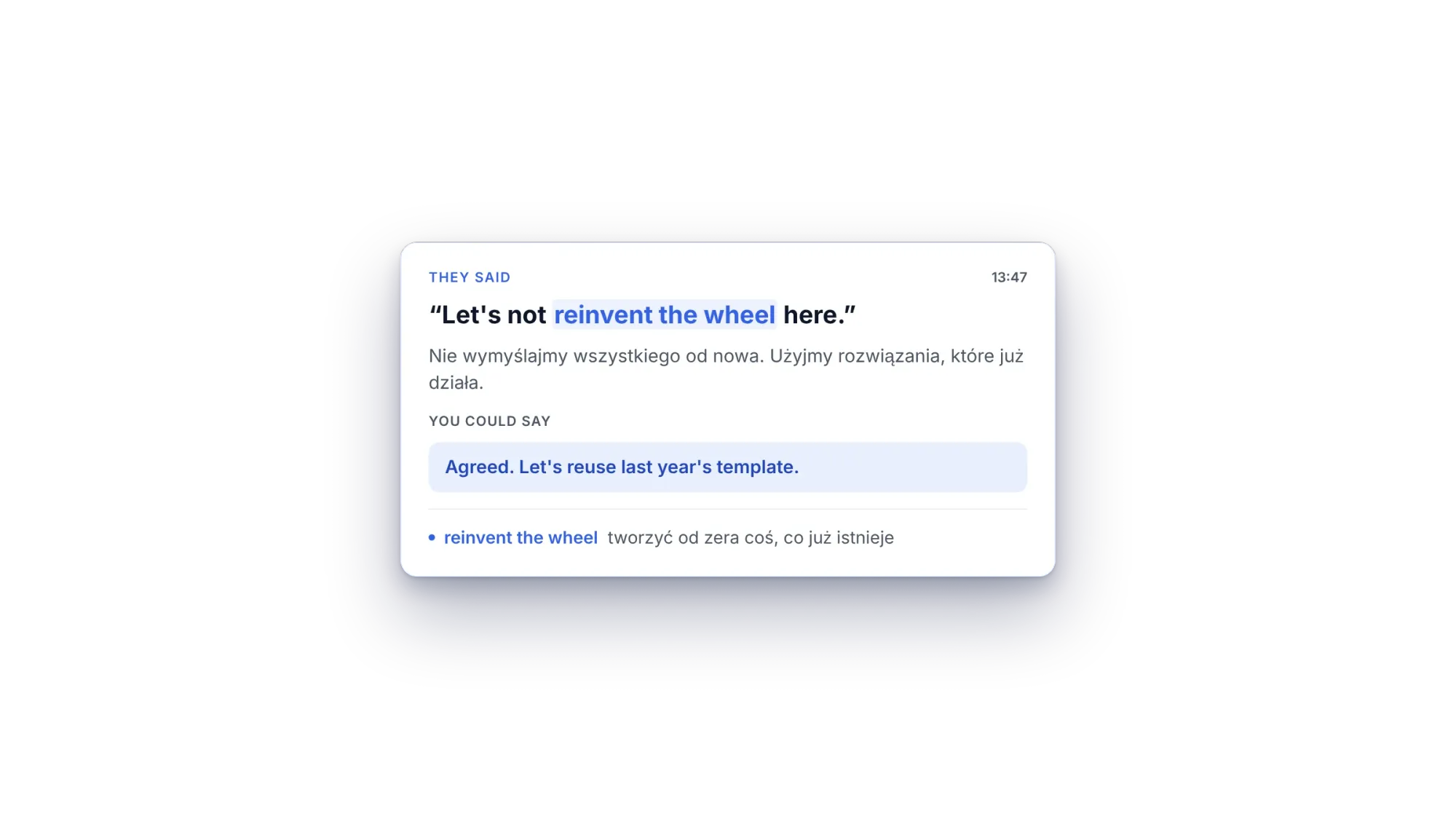
Sidecue's Language coach keeps you in the meeting language and helps you understand and respond. A few seconds after someone speaks, it shows their exact words, what they really meant, idioms and jargon explained at your level, and natural phrases you could say back.
If you'd rather read explanations in your own language, set Explain in to one of 20+ languages. The quotes and suggested replies stay in the meeting language, so you can still say them.
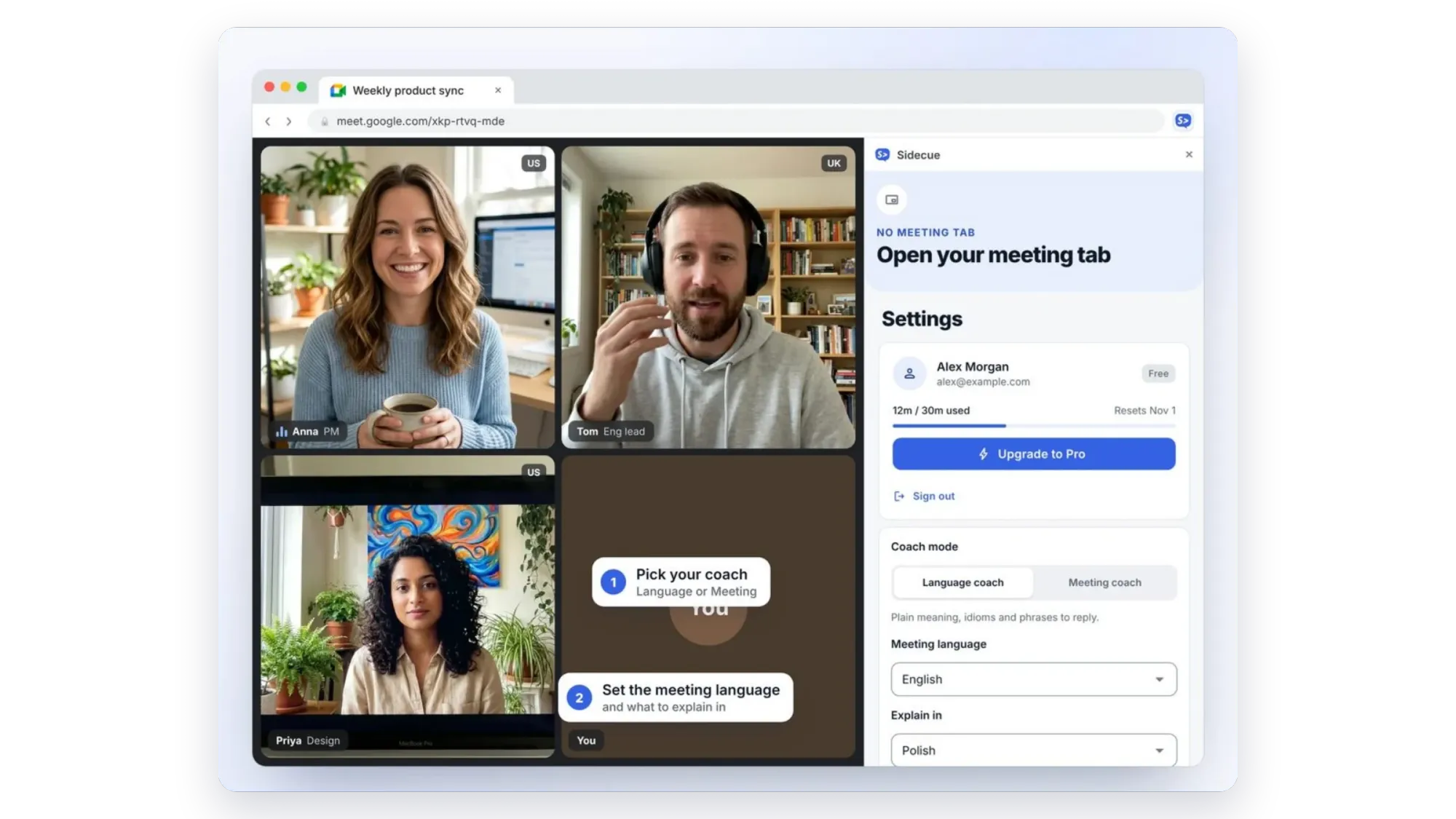
Sidecue works in Chrome with Google Meet, and with Zoom and Teams when you join in the browser, whatever plan the host is on. It only listens after you press Start, and no bot joins the call. The free plan includes 30 minutes a month; Pro is $19 a month.
You can also use both: Meet's captions for a full transcript, and Sidecue for the moments you need meaning and a reply. Try it in a practice call first.
Add Sidecue to Chrome for free
FAQ
Is Google Meet translation free?
No. Both translated captions and speech translation need an eligible Google Workspace or Google AI plan. Regular captions in the spoken language are available more widely. See how to turn on live captions in Zoom, Teams and Google Meet.
Why can't I see the translation option?
The host may not be on an eligible plan, your admin may have turned it off, or the feature may still be rolling out to your domain. Speech translation also isn't available in recordings, live streams or dial-in calls.
Does it work in Zoom or Teams?
No. These are Google Meet features. Zoom and Teams have their own caption and translation options, usually on paid plans.
Which should I use?
If you don't speak the meeting language, use translation. If you speak it but miss idioms, jargon or fast speech, an explanation tool like Sidecue helps you stay in the conversation. Our list of business idioms you'll hear in meetings is a good place to start too.
Feature details are based on Google Meet Help and the Google Workspace Updates blog, October 2026. Google changes plans and features often, so check the current help pages before you rely on them.
Written by
Questions or thoughts? Share them below.
Keep reading
How to turn on live captions in Zoom, Teams and Google Meet
Step-by-step instructions for turning on live captions in Zoom, Microsoft Teams and Google Meet, how to change the caption language, and what translated captions need.